 Scrubs
Right now: free space in a few minutes
- Empty the Trash. Moving files to the Trash frees nothing until it is emptied: Finder › Empty Trash.
- Open Storage settings. System Settings › General › Storage shows what takes the space and offers Apple's own fixes: Store in iCloud, Optimize Storage and Empty Trash Automatically. Click ⓘ next to a category to see its largest items.
- Delete one big thing you know you don't need, such as an old video, a disk image in Downloads or an Install macOS app in Applications.
- Restart. It clears temporary files and shrinks swap, and macOS frees purgeable space such as local Time Machine snapshots when it needs room.
Keep a margin. macOS needs free space to run, update and make swap. Aim to keep at least 10 to 20 GB free, more before a macOS update.
Where the space usually goes
On most Macs, a handful of places hold most of it. Each link explains what the folder is and the safe way to clear it.
If you write software, the biggest folders are usually developer tools instead: simulators, build folders and package caches. How to free up disk space on a Mac covers those, measured on a developer's Mac.
Find the rest
Storage settings sorts the disk into categories but doesn't show folders. To see what is actually big:
- Finder: open your home folder, choose View › as List, then View › Show View Options › Calculate all sizes, and sort by Size.
- Large files: see how to find large files on a Mac for four ways and what each misses.
- A disk map: a treemap shows the whole disk at once, so the big folders stand out without knowing where to look. See disk space analyzers for Mac.
What never to delete
- Anything in
/System. It is read-only, and macOS manages it. - Files inside the Photos library or
~/Library/Messagesin Finder. Delete photos in Photos and attachments in Messages or Storage settings, or the apps lose track of them. - Folders in
~/Libraryyou don't recognise. They hold apps' data, sometimes your documents. Look them up first. - Swap and the sleep image. macOS manages them; see sleepimage and swap.
Move to the Trash first. If something breaks, you can put it back. Empty the Trash once everything still works.
Questions
What happens when a Mac's storage is full?
Apps slow down or quit, saving can fail, and macOS can't install updates or make the swap files it needs.
What should I delete first?
Empty the Trash, then remove one big thing you know you don't need, such as an old video, an installer or an old iPhone backup.
Will restarting free up space?
Some: it clears temporary files and shrinks swap, and macOS frees purgeable space when it needs room.
Why does my Mac say storage is full when Finder shows space available?
Finder counts purgeable space, which macOS can free but hasn't yet. Apps that check free space may not count it.

How Scrubs helps
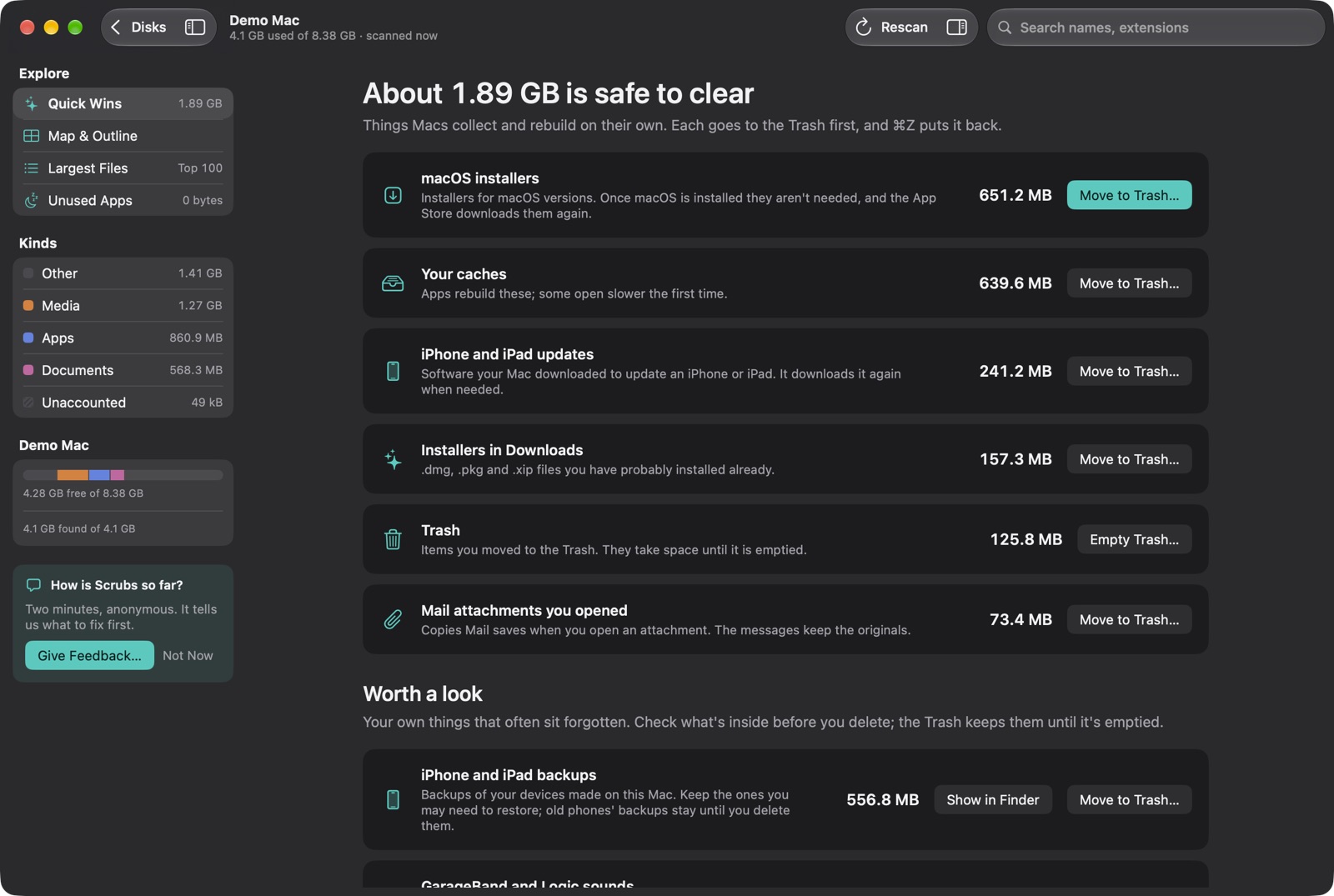
Scrubs scans your Mac and opens on Quick Wins: old macOS installers, installers in Downloads, Mail's attachment copies, caches and the Trash, each with its size and a Move to Trash button. Your own things, such as iPhone backups and downloads you haven't touched in months, show under Worth a look, so you check them first. Then the map shows everything else. Everything goes to the Trash first, with ⌘Z to undo. Scanning is free.
Written November 2026, for macOS 15 and later.
About the author: Parsa Nasirimehr is a mobile app developer who builds Scrubs, a disk map for the Mac. Spotted something wrong? Write to support@getscrubs.app.